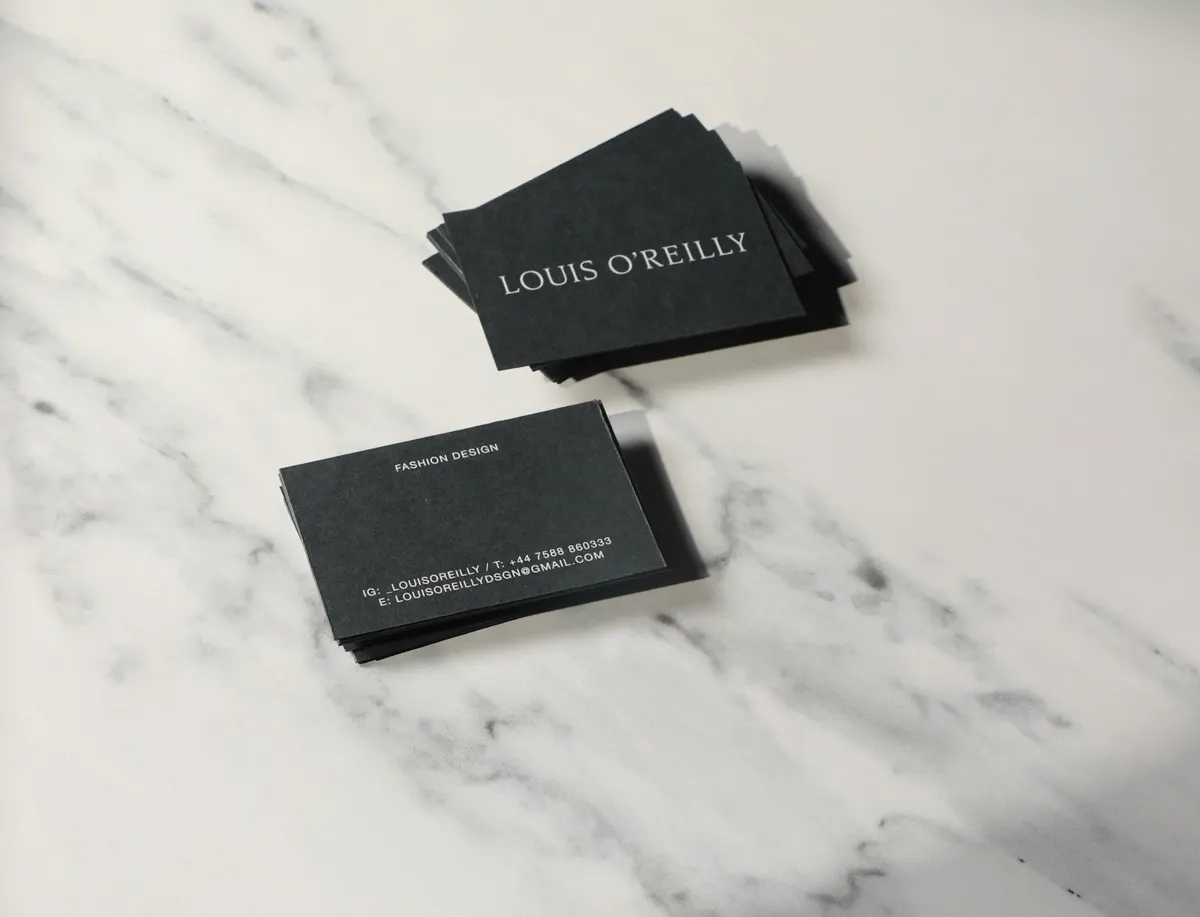
How to make a QR code for a business card is a short task: choose the contact card type, enter the details you want people to save, download the code and print it on the card with enough space around it to scan. Once someone scans it, their phone offers to save you as a new contact, so your number and email reach their address book without any retyping.
The QR code generator on our site has a Contact card (vCard) type with fields for name, company, job title, phone, email and website. The steps below use those fields exactly, explain what to leave out, and cover the print and test steps that decide whether a card scans the first time.
What a contact card QR code holds
A contact card code stores a small set of fields, and a phone turns them into a new contact. The generator does not ask for anything else, so the card stays simple and the code stays easy to scan.
| Field | What to enter | Tip |
|---|---|---|
| Full name | The name you want saved | Use the name people already know you by |
| Company | Your company name | Match the spelling on the printed card |
| Job title | Your role | Keep it short, because long titles fill the phone screen |
| Phone | Your mobile or office number | Use the international format, such as +44 for the UK |
| The address you want contacts to write to | Use a work address for client work | |
| Website | Your main site | Link to the homepage rather than a deep page |
Step by step: generate the contact code
- Open the QR code generator and choose Contact card (vCard) from the content type list.
- Enter your full name, company and job title in their fields.
- Enter your phone number and email address exactly as you want them saved.
- Enter your website address, then check the encoded content under the preview before you download.
- Leave error correction on M for a card that stays flat in a wallet. Choose Q if the card will be folded or handled often.
- Keep the code dark on a light background and the quiet zone at 4 modules or more.
- Download as PNG for a digital card or SVG for a print file that must scale to the card size.
Decide what to share
A contact card code is readable by anyone who scans it, and the phone stores whatever it finds. Share only what you would hand to a stranger at a trade fair. A personal mobile number may be right for a sole trader and wrong for a team, so decide the rule once and apply it to the whole team.
- Use a work email rather than a personal one on business cards.
- Use a team number or shared inbox when many people hand out the same card.
- Leave out a home address. This generator's contact card has no address field anyway.
- Add a short call to action next to the code, such as Save my contact, so people know what will happen when they scan.
Size, colour and print settings for a card
A business card is small and has to fit a name, a logo and a code. The tool's size and error-correction settings control how the code prints, so set them for the card itself rather than only for the screen.
| Setting | Tool option | Advice for a business card |
|---|---|---|
| Size | 64 to 2048 px for downloads | Download a large file so the printed edge stays sharp |
| Print width | The tool advises at least about 2 cm | Print at or above that width, and larger if the card is read from further away |
| Quiet zone | 0 to 10 modules, at least 4 recommended | Leave a clear margin and keep the logo and text away from the code |
| Error correction | L, M (default), Q, H | M for flat cards; Q or H for cards that get folded, laminated or handled |
| Colours | Code and background colours | Dark code on white or cream stock; avoid dark or metallic backgrounds |
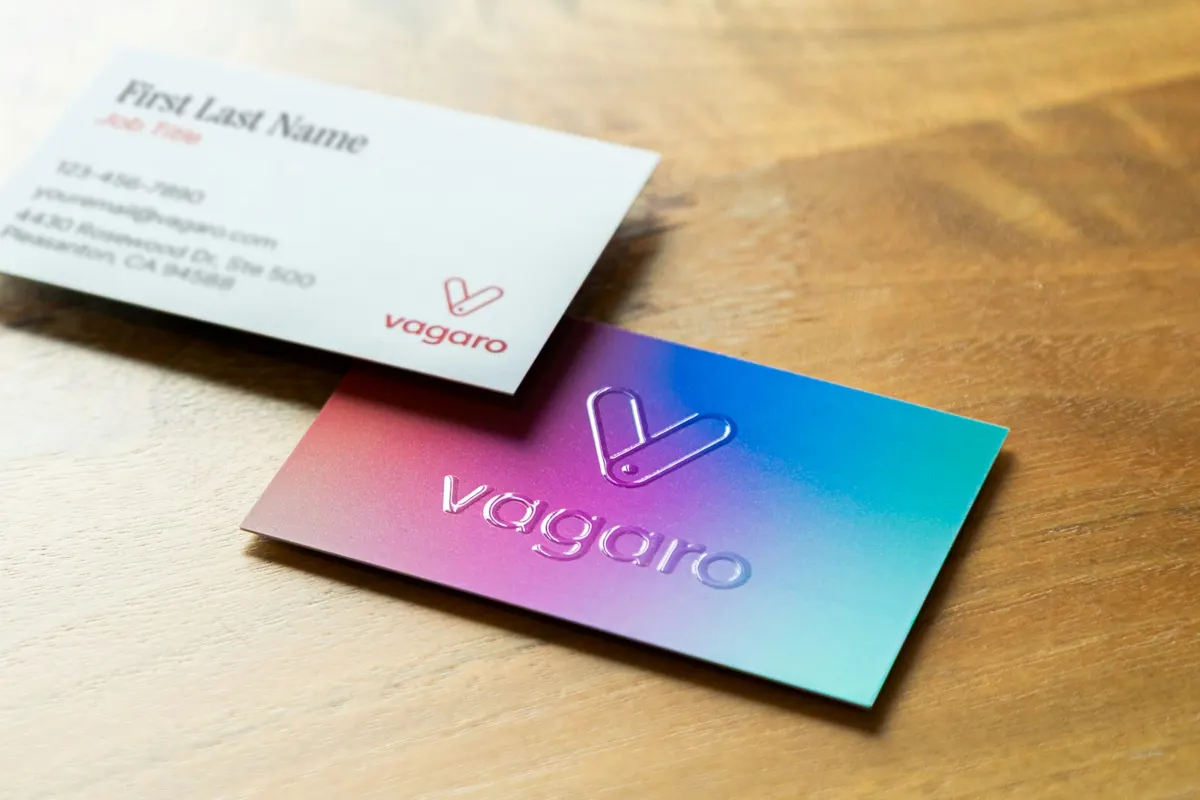
Test the colour on your own printer and paper. Card stock absorbs ink differently from copy paper, and a code that looks crisp on screen can print grey. If your card has a dark design, place a light panel behind the code rather than inverting the colours, because an inverted code is harder for many scanners to read.
Test the printed card before you order a run
A card with a bad code is worse than a card with no code, because the person who scans it gets nothing and forms a poor first impression. Print one proof, then test it in the places it will be used: a desk, a wallet, a bright conference hall.
- Scan the printed proof with an iPhone and with an Android phone, from both an arm's length and a closer distance.
- Check that the phone offers to create a contact and that the name, company, phone and email all appear correctly.
- Scan under bright light and in a dim room, and check how the reflective finish affects the code.
- Ask a colleague to scan it without you explaining anything, to see whether the call to action makes sense.
- Only after these checks, order the full run.
Keep the card current and connect it to your contacts
A contact card code is a snapshot. It holds the details as they were when you made it, so a new phone number means a new code and a reprint. If your details change often, print a short web link on the card instead and update the page it points to. Review the details every few months anyway, because a card printed half a year ago can already be out of date.
What happens after a scan matters as much as the scan itself. If the people you meet become leads, your team needs a record it can follow up. Our introduction to what CRM is and our guide to how to choose a CRM explain how a contact moves from a card to a sales conversation. In Dika Ops, the CRM module keeps those contacts on the same record as quotes and orders. For the web pages that a card points to, our enterprise web and digital commerce work covers the build.
Frequently asked questions
Can a QR code hold a full contact card?
Yes. The contact card type stores a name, company, job title, phone number, email address and website. Keep the content short so the code stays easy to scan on a small card.
Do I need an app to scan a business card QR code?
Usually not. The phone camera reads the code and offers to save the contact. Test on both iPhone and Android, because the prompt looks different on each system.
Can I add a photo or a street address?
This generator's contact card does not have fields for a photo or a street address, so it stores only the fields listed above. If you need an address or a photo, point the code to a web page that shows them.
Why does my business card code not scan?
The usual causes are a code printed too small, no quiet zone, inverted colours or a stretched image. Compare the printed proof with the tool's warnings, reprint at a larger size and test again.
What do I do when my number changes?
The printed code keeps the old details, so generate a new code and reprint. Settle your phone number, email and website before you print the first run, which saves the cost of a reprint later.
Next step for your cards
Make one contact card code, print a proof and test it on two phones before you order cards. The WhatsApp link generator can add a chat link next to the code, and all our tools are on one page. We are Dika Design. If you want to talk through how your contacts should flow from a card into your sales process, talk to us.